
Hands-On Review
Panasonic Toughbook FZ-G1 Review

The Bottom Line
Thirteen years on, the FZ-G1 still does the two things that matter: it survives the job and you can read the screen in full sun. It is slow by modern standards and it is Windows 10 territory, but nothing else gives you a sealed, sunlight readable Windows tablet with an optional serial port at this price. Buy the generation, not the model name.
The Rugged Books Difference
Every unit is inspected, repaired & graded in-house.We don’t flip boxes. Each laptop is stripped, tested, and certified by our techs before it ships — so the review you’re reading reflects the exact machine you’ll receive.
How We Refurbish →Pros & Cons
- Genuinely sunlight readable at around 800 nits
- IP65 sealed and MIL-STD-810G drop tested
- Full desktop Windows with a real Intel Core i5
- Optional true RS232 serial port, close to unique on a tablet
- Battery and SSD both swap out in seconds
- Huge, cheap supply of docks, batteries and spare parts
- Gloved and wet touch from MK2 onward
- Lowest cost route into a fully rugged Windows tablet
- Five near identical generations make buying confusing
- Outside Microsoft's official Windows 11 processor list
- Expansion options are mutually exclusive and fixed at the factory
- Fan is audible in quiet environments
- Cameras are poor even by the standards of their day
- No keyboard included
- IP65 is not submersible
- Used batteries are often well below usable capacity
Panasonic Toughbook FZ-G1 Review Specs
| Screen | 10.1 in IPS, 1920 x 1200, 2 to 800 nits |
|---|---|
| Processor | Intel Core i5, 3rd to 7th generation |
| Memory | 4GB or 8GB DDR3L |
| Storage | Removable 128GB to 512GB SSD, OPAL option |
| Dimensions | 10.6 x 7.4 x 0.75 in |
| Weight | 2.25 to 2.4 lb |
| Sealing | IP65 |
| Drop | MIL-STD-810G Method 516.6 Proc IV, 4 ft rated |
| Operating temp | 14 to 122 F |
| Battery | 47.5 Wh, 8 to 14 hr, extended to 28 hr |
| Input | 10 point touch, gloved touch, active digitizer pen |
| Standard ports | USB 3.0, HDMI, audio, 24 pin dock |
| Optional | RJ45, USB 2.0, RS232 serial, GPS, barcode, RFID, smart card, microSDXC |
| Security | TPM 1.2 (MK1-2), TPM 2.0 (MK4-5), Computrace, Kensington slot |
| Launch price | USD 2,399 (2013), USD 2,899 (2014 onward) |
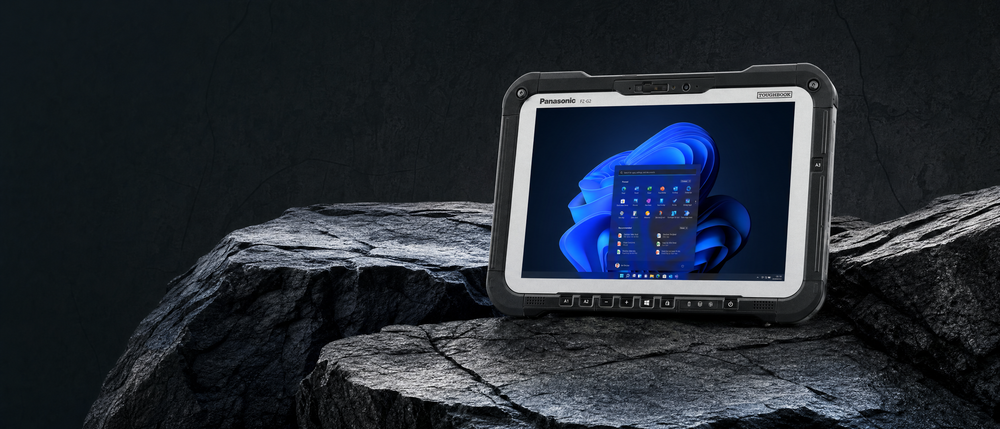
The Panasonic Toughbook FZ-G1 is a 10.1 inch fully rugged Windows tablet, sold as the Toughpad FZ-G1 from 2013 until the FZ-G2 replaced it in 2020. It weighs about 2.4 lb, survives 4 foot drops, carries an IP65 seal, and its 1920 x 1200 screen reaches roughly 800 nits so you can read it in direct sun. Five generations exist. Buy an MK4 or MK5 if you want current software support. Buy an MK1 through MK3 if you need a cheap sealed Windows tablet and can live on Windows 10.
- It is a real computer, not a tablet in a rugged case. Full Intel Core i5, full Windows, removable SSD, and a serial port option. That is why it still runs diagnostic and dispatch software nothing else will touch.
- The generation matters more than the price. An MK1 and an MK5 look identical and can differ by four processor generations and six hours of battery life. Confirm the CPU before you buy.
- The ports are a one time decision. Panasonic made several expansion options mutually exclusive. A unit built with a serial port cannot also have a barcode reader, and you cannot add either later.
- 800 nits changes how you work. Most tablets die in sunlight. This one does not, and that single spec is why utility, survey, and public safety crews still specify it.
- It is a used market device now. New stock is gone, which makes who you buy from and what they tested the actual purchase decision.
What is the Panasonic Toughbook FZ-G1?
Start with the name, because it trips people up. Panasonic sells rugged laptops under the Toughbook brand. Between roughly 2012 and 2019 it sold rugged tablets under a separate brand called Toughpad. The FZ-G1 launched as the Toughpad FZ-G1, and Panasonic later folded the Toughpad line back into Toughbook. So Toughpad FZ-G1 and Toughbook FZ-G1 are the same device. If you are shopping for a Panasonic Toughbook tablet from this era, this is one of the two you will find, alongside the larger CF-33 and the convertible CF-20.

Physically, it is a 10.1 inch slate about three quarters of an inch thick that weighs roughly two and a half pounds. Picture an iPad that went through basic training. The frame is magnesium alloy, the corners wear replaceable elastomer guards, and every port sits behind a hinged door with a rubber pressure seal. There is no keyboard in the box. You get a capacitive touchscreen, a pen that lives in a garage on the left edge, and Windows.
That last part is the whole point. This is not an Android tablet or an iPad with a case on it. Inside is a genuine Intel Core i5, a removable SSD, and desktop Windows. Whatever software your organization already runs, this thing runs it. That is why you still find FZ-G1s bolted into utility trucks, ambulances, forklifts and survey rigs a decade after launch, long after the consumer tablets that shipped alongside them went to landfill.
Panasonic Toughpad FZ-G1 generations explained: MK1 through MK5
Here is the trap that catches most first time buyers. Panasonic revised the FZ-G1 five times across seven years and barely changed the outside. An MK1 from 2013 and an MK5 from 2017 are visually near identical. Internally they are separated by four processor generations, two Windows versions, and roughly six hours of battery life.
If a listing says "Toughpad FZ-G1" and nothing else, you do not yet know what you are buying. This table is the fastest way to work it out.
| Generation | Processor | Intel family | Base clock | Shipped with | Battery, standard | Battery, extended |
|---|---|---|---|---|---|---|
| MK1 (2013) | Core i5-3437U | 3rd gen, Ivy Bridge | 1.9 GHz | Windows 8 Pro | ~8 hr | ~14 hr |
| MK2 (2014) | Core i5-4310U | 4th gen, Haswell | 2.0 GHz | Windows 8.1 Pro | ~10 hr | ~20 hr |
| MK3 (2015) | Core i5-5300U | 5th gen, Broadwell | 2.3 GHz | Windows 8.1 / 10 Pro | ~10 hr | ~20 hr |
| MK4 (2016) | Core i5-6300U | 6th gen, Skylake | 2.4 GHz | Windows 10 Pro | ~14 hr | ~28 hr |
| MK5 (2017) | Core i5-7300U | 7th gen, Kaby Lake | 2.6 GHz | Windows 10 Pro | ~14 hr | ~28 hr |
Processor and battery figures from Panasonic specification sheets and RuggedPCReview's generation tracking. Battery numbers are manufacturer claims under MobileMark testing, not field results.
Identify your generation in 30 seconds: do not rely on the part number, the suffixes are cryptic. On the tablet, press the Windows key, type msinfo32, and read the Processor line. Match the i5 model to the table above. If the unit will not boot, the full part number is on the label inside the battery compartment.
Two other things changed across the run and both matter more than clock speed. From MK2 onward the touchscreen gained gloved multitouch that keeps working when the screen is wet, which is a real upgrade if you work outdoors. And from MK4 onward the security chip moved to TPM 2.0, where MK1 and MK2 shipped TPM 1.2. If your IT department requires BitLocker with TPM 2.0, or has any interest in Windows 11, that line alone rules out the early units.
Manufacturer stated runtimes. Real world results on a used battery will fall well below these figures, which is exactly why battery health belongs on your purchase checklist.
How tough is it really? IP65 and MIL-STD-810G in plain English
Rugged specs get thrown around loosely, so here is what the FZ-G1's two headline ratings actually promise.
IP65 is two separate scores. The first digit, 6, is the highest dust rating there is. It means dust tight, full stop. The second digit, 5, means the sealed enclosure will shrug off a low pressure water jet from any direction. Rain, a hose down, a spilled coffee, all fine. What IP65 does not mean is submersible. For that you need IP67, and the FZ-G1 is not rated for it. Drop one in a creek and you have a problem. Work in a downpour all day and you do not.
MIL-STD-810G is not a pass or fail badge, it is a catalogue of test methods and manufacturers choose which ones to run. Panasonic ran a lot of them on this device: drop, vibration, humidity, altitude to 40,000 ft, and temperature extremes. The drop test is the interesting one. The official rating is a 4 ft drop, but the procedure Panasonic used, Method 516.6 Procedure IV, involved 26 drops each from 48, 60 and 72 inches, non operating. That is a considerably harder test than the marketing number suggests. Our certifications page explains how we verify these claims on incoming stock.
Operating temperature is 14 to 122 degrees Fahrenheit, which is decent but not extreme. Canadian winters will exceed the low end. If your crews leave devices in unheated trucks overnight, plan on the tablet needing to warm up before it will charge.
The caveat nobody mentions: all of that sealing depends on the port doors being closed and the rubber gaskets being intact. On a ten year old tablet those gaskets are the first thing to perish, and a missing port cover means the IP65 rating is gone. When we grade an FZ-G1, seal condition gets checked on every port door, and a missing port is a functional disqualifier at any condition grade. See how our refurbishing process works.
Alt text: Panasonic Toughbook FZ-G1 port door pressure seal, new gasket compared to a perished gasket
The screen is the reason people buy this tablet
Everything above is table stakes for a rugged device. The display is where the FZ-G1 earns its price.
It is a 10.1 inch IPS panel at 1920 x 1200, a 16:10 shape rather than the 16:9 of most laptops. Extra vertical space, useful for forms and maps. Resolution works out to about 220 pixels per inch, so text is sharp.
The number that matters is brightness. Panasonic rates the backlight from 2 nits at the bottom of the range up to roughly 800 nits at the top. For context, a typical office laptop tops out around 250 to 300 nits and becomes a mirror the moment you carry it outside. Panasonic also stacked three other treatments on the panel: anti reflective coating, anti glare coating, and direct bonding, which laminates the display layers together to remove internal reflections. Brightness alone does not make a screen sunlight readable. Brightness plus reflection control does.
The 2 nit low end deserves a mention too. That is dim enough to use in a blacked out vehicle at night without destroying your night vision, which is part of why these get specified for police and military fleets.
Verify before publish: confirm the FZ-G2 figure against Panasonic's current spec sheet, and consider swapping the two generic bars for named models you actually stock.
Alt text: Panasonic Toughbook FZ-G1 sunlight readable screen compared to a consumer tablet in direct sun
Performance: fast enough, and that has not changed
When RuggedPCReview benchmarked the original MK1 in 2013, it outran every other Intel Core rugged tablet on the market at the time by a wide margin. Some of that was the processor and a lot of it was the solid state drive, which was still unusual in rugged hardware then.
Independent PassMark PerformanceTest results from RuggedPCReview's comparative testing. Historical figures, useful for showing where the platform sat at launch.
The honest modern read: a dual core i5 with 8GB of RAM is not going to impress anyone in 2026, but it is entirely adequate for what these devices actually do. Dispatch software, work order systems, diagnostic suites, PDF forms, mapping, a browser with a dozen tabs. All fine. Video editing and modern CAD are not what this is for. If you need a rugged machine with real horsepower, look at a current generation Toughbook laptop instead, or line the options up side by side with our rugged computer comparison tool.
Two caveats worth knowing. First, there is a fan and it is audible. In a quiet room you will hear it. You can throttle it in the Panasonic Dashboard at some cost to performance. Second, like nearly all Intel mobile hardware, the FZ-G1 gives up meaningful performance when running on battery rather than plugged in. If you benchmark one, benchmark it unplugged, because that is how it will live.
Battery life, and the hot swap trick
The standard battery is a 10.8 V, 4,400 mAh, 47.5 Wh pack that snaps into the back with no tools. Panasonic's claim moved from about 8 hours on the MK1 to about 14 hours by the MK4, helped as much by newer low power processors as by the battery itself.
Independent measurement of actual power draw on the MK1 landed roughly where you would expect: about 4.3 watts idling on the power saver plan at minimum brightness, about 4.7 watts on the balanced plan at mid brightness, and up to about 9 watts on high performance with the screen at full brightness and video playing. Divide 47.5 Wh by those numbers and you get a theoretical 5 to 11 hours depending entirely on how you use it.
Power draw measured by RuggedPCReview on an FZ-G1 MK1 using the Panasonic Battery Status utility. Screen brightness is by far the largest variable you control.
Two options change the maths. An extended battery roughly doubles runtime while adding thickness and weight, and it needs the taller corner guards to sit flat. An optional bridge battery is the more interesting one: a small internal cell that holds the tablet alive while you pull the main battery and drop a fresh one in. Combined with two spare packs and a dual battery charger, that turns a 14 hour tablet into an all shift tablet with no downtime.
Buying used, read this twice: battery health is the single biggest thing separating a good used FZ-G1 from a frustrating one. A ten year old cell at 60 percent of original capacity turns a 14 hour claim into four real hours. Ask for measured capacity as a percentage of design capacity, not a yes or no on "battery included."
Ports and expansion: the decision you cannot undo
Every FZ-G1 ships with the same standard set: one USB 3.0, one full size HDMI, a headset jack, the 24 pin docking connector on the bottom, and a dual external antenna connector.
Then there is the configuration port on the top edge, and this is where buyers get caught. Panasonic offered a long list of options that fit into a limited number of physical bays, and many are mutually exclusive. Depending on the configuration you can have one or two of the following, not all of them:
- Gigabit ethernet, RJ45
- A second USB 2.0 port
- True RS232 serial, 9 pin D-sub
- Dedicated GPS receiver
- 1D and 2D barcode reader
- UHF RFID reader
- Contactless or insertable smart card reader
- Magnetic stripe reader
- Bridge battery for hot swapping
- microSDXC card slot
None of this can be added after the fact in any practical way. The configuration was welded in at the factory. So work backwards from your actual job before you shop:
- Diagnostics or older industrial equipment? You need the serial port. This is the single most common reason people specifically hunt down an FZ-G1 rather than a modern tablet.
- Warehouse, inventory, asset tracking? You need the barcode reader, and you are giving up the serial port.
- Field navigation or asset survey? You need the dedicated GPS, which is far more accurate than location by cell tower.
- Public safety or government? You probably need a smart card reader for CAC or PIV authentication.
One more gotcha straight from Panasonic's own documentation: on units fitted with a magnetic stripe reader, the USB 3.0 port, HDMI port and audio jack are physically blocked. Read the configuration before you commit.
Alt text: Panasonic Toughbook FZ-G1 configuration port options including serial, barcode reader and ethernet
Pen, touch, and working with gloves on
The FZ-G1 gives you both a 10 point capacitive touchscreen and a Wacom style active digitizer pen, and it needs both.
Capacitive touch handles what you expect: tap, pinch, zoom, pan a map. It is quick and it feels modern. The problem is that desktop Windows was never designed for fingers. Small menus, checkboxes and dropdowns in older business software are genuinely difficult to hit accurately. That is what the pen is for. It lives in a garage on the left edge, it is tethered, and it is precise. For any legacy Windows application the pen is not an accessory, it is the primary input.
From MK2 onward you also get gloved multitouch that keeps working when the screen is wet, and Panasonic later offered a waterproof digitizer pen. If your crews wear gloves, and in this market they usually do, that puts a hard floor under which generation you should buy.
The bezel around the screen is thicker than a consumer tablet's. That is deliberate. It protects the glass and stiffens the chassis. It also means edge swipe gestures are slightly awkward. A reasonable trade.
Cameras: the weak point
Being straight about this. The cameras are the FZ-G1's least impressive feature. The MK1 shipped a 720p front webcam and a 3 megapixel rear camera, later improved to 8 megapixels with an LED illuminator. Even at 8 megapixels the image quality trails a mid range phone from the same year by a wide margin, and video is soft.
For its intended purpose, photographing a meter reading, a damaged part, or a signed form, it is adequate. If documentation photography is central to the job, plan on your crews using their phones for that and the tablet for everything else.
FZ-G1 vs FZ-G2: which should you buy?
The FZ-G2 replaced the FZ-G1 in 2020 and is still in production, now on its third revision. If you are choosing between them, the decision usually comes down to budget and software support rather than features.
| Toughbook FZ-G1 | Toughbook FZ-G2 | |
|---|---|---|
| Status | Discontinued, used and refurbished only | Current production, new and refurbished |
| Screen | 10.1 in, 1920 x 1200, ~800 nits | 10.1 in, 1920 x 1200, brighter panel |
| Processors | Intel Core i5, 3rd to 7th gen | Intel 10th gen through Core Ultra |
| Windows 11 | Outside Microsoft's official CPU list | Fully supported |
| Ports | USB 3.0, HDMI, configurable expansion | USB-C added, configurable expansion |
| Docking | Shares several dock models with the FZ-G2 | Shares several dock models with the FZ-G1 |
| Typical cost | Lowest cost sealed Windows tablet with a serial option | Several times the price of a used FZ-G1 |
| Best for | Fleet deployments, spare pools, legacy software, tight budgets | New deployments needing 5 to 7 more years of support |
Worth knowing before you decide: several Havis, Gamber-Johnson and Panasonic docks and cradles are shared across both models. If you already have FZ-G1 docks in your vehicles, moving to the FZ-G2 may not mean replacing your mounting infrastructure. Check the specific part number, because some are model specific. Our FZ-G1 docks and mounts and desktop docks collections list compatibility on each product.
The Windows 11 question, answered honestly: the MK5's Core i5-7300U is a 7th generation chip, and Microsoft's official Windows 11 processor list starts at 8th generation. The hardware has TPM 2.0 and Secure Boot, so Windows 11 can be installed, and you will see FZ-G1 units advertised with Windows 11 preinstalled. What you are getting in that case is an unsupported configuration that may not receive updates indefinitely. If your organisation has a hard Windows 11 requirement with vendor support attached, the FZ-G1 is the wrong device and the FZ-G2 is the right one. If you need a sealed Windows 10 tablet at a fraction of the cost, the FZ-G1 is excellent value.
What to check before buying a used or refurbished FZ-G1
We refurbish these, so this list comes from what we actually find when units come through the shop. Use it whoever you buy from.
- Confirm the generation from the CPU, not the listing title. Run msinfo32 or ask the seller for the processor model. "FZ-G1" alone tells you nothing.
- Get battery health as a percentage. Design capacity versus current capacity. Anything under 80 percent means budgeting for a replacement.
- Check every port door and gasket. Open and close each one. A hardened or missing seal means the IP65 rating no longer applies, and a missing port cover should be disclosed in the listing.
- Confirm which expansion option is fitted. Serial, barcode, GPS, smart card. You cannot change this later, so verify it matches your use case.
- Test the digitizer across the whole screen, especially the corners. Wacom digitizers lose accuracy near the edges as they age.
- Look for screen delamination. The direct bonded display can separate after years of thermal cycling, which shows as a cloudy or rainbow patch.
- Verify the pen and tether are present. Replacements exist but they are an extra cost and easy to overlook.
- Ask what was actually tested. A real refurbisher can tell you which functions were verified. If the answer is vague, that is your answer.
If you are new to buying refurbished hardware generally, our guide to what refurbished actually means covers the grading language and the questions to ask any seller.
Accessories that are actually worth it
- A vehicle dock. If the tablet lives in a truck this is not optional. It charges, secures, and often adds back the ports the tablet lacks. Havis and Gamber-Johnson are the two names to know.
- A spare battery and a dual charger. Cheaper than a new tablet and it solves the single biggest complaint about ageing units.
- A screen protector. The glass is tough but it is not free to replace. A film costs a fraction of a digitizer assembly.
- A rotating hand strap. Two and a half pounds held one handed for a full shift is more tiring than it sounds.
- An external keyboard. There is no keyboard in the box. If anyone is typing more than a few sentences, get one.
- Long corner guards. Required if you fit the extended battery or a smart card reader, so the tablet sits flat on its back.
Who should buy an FZ-G1, and who should not
Buy one if you need a sealed, sunlight readable Windows tablet for field work and you are cost sensitive. Buy one if you need a real serial port on a tablet, because your options are almost nonexistent otherwise. Buy one if you are building a spare pool for an existing FZ-G1 fleet, since parts, docks and batteries are plentiful and cheap. Buy one if you want to test whether rugged tablets suit your operation before committing to new hardware.
Skip it if you have a hard, supported Windows 11 requirement. Skip it if you need serious processing power, in which case a current Toughbook laptop makes more sense. Skip it if you need a larger screen, where the CF-33 at 12 inches is the better fit. Skip it if you need genuine submersion resistance, because IP65 is not IP67. And skip it if photo documentation is central to the work.
If you want a fully rugged Panasonic but a laptop rather than a tablet, the Toughbook CF-31 is the closest equivalent in age, price and philosophy, and it has a native serial port as standard rather than as an option.
Not sure which generation you need?
Tell us what software you run and what the tablet will do all day. We will tell you honestly which MK makes sense, including when the cheaper one is the right call, and we will confirm the exact processor, battery health and expansion port on any unit before you buy. We have shipped to more than 25,000 customers across six continents since 2016. Request a quote and we will get right back to you.
Shop Toughbook Tablets
Frequently asked questions
Is the Toughpad FZ-G1 the same as the Toughbook FZ-G1?
Yes. Panasonic launched it in 2013 as the Toughpad FZ-G1, then folded the Toughpad tablet brand back into Toughbook. The device is identical, only the branding changed.
How do I know which FZ-G1 model or generation I have?
Check the processor. Press the Windows key, type msinfo32, and read the Processor line. An i5-3437U is an MK1, i5-4310U is MK2, i5-5300U is MK3, i5-6300U is MK4, and i5-7300U is MK5. The full part number is also printed on a label inside the battery compartment, but the suffixes are hard to decode without a Panasonic reference sheet.
How do I take a screenshot on a Panasonic Toughpad FZ-G1?
Press and hold the Windows logo button on the front bezel, then press the volume down button. The screen dims briefly and the image saves to Pictures then Screenshots. If your unit's button layout differs, the on screen keyboard also has a PrtSc key, and the Windows Snipping Tool works normally.
How do I adjust the brightness on a Panasonic Toughpad?
Open the Panasonic Dashboard, the utility Panasonic preinstalls, and use the Brightness control. It spans the full range from 2 nits to roughly 800 nits. The tablet also has an ambient light sensor for automatic adjustment, which you can turn off in the same place if it is fighting you.
How do I set the FZ-G1 to pen only or touch only?
Open the Panasonic Dashboard and find Screen Input. The dropdown lets you choose pen only, touch only, or both. Pen only is genuinely useful if you rest your palm on the screen while writing.
How do I bring up the on screen keyboard?
Tap the keyboard icon in the Windows taskbar notification area. If it is not showing, right click the taskbar and enable the touch keyboard button, or go to Settings, then Time and Language, then Typing.
How much does a Panasonic Toughpad FZ-G1 weigh?
About 2.25 lb as originally tested and 2.4 lb quoted with the standard battery on later generations, which is roughly 1.1 kg. The extended battery adds weight and thickness.
What processor does the FZ-G1 have?
An Intel Core i5 in every generation, ranging from the 3rd generation i5-3437U in the MK1 up to the 7th generation i5-7300U in the MK5. All are dual core, low voltage, 15 to 17 watt parts.
Can the FZ-G1 run Windows 11?
Not on Microsoft's supported list. The newest FZ-G1 uses a 7th generation Intel chip and official Windows 11 support starts at 8th generation. The hardware does have TPM 2.0 and Secure Boot on MK4 and MK5, so an unsupported installation is possible and some sellers ship units that way. For a supported Windows 11 rugged tablet, look at the FZ-G2 instead.
Is the Toughbook FZ-G1 waterproof?
It is water resistant, not waterproof. The IP65 rating means it is dust tight and can handle water jets from any direction, so rain and hose downs are fine. It is not rated for submersion, which would require IP67. The rating also depends on all port doors being closed with intact seals.
How long does the FZ-G1 battery last?
Panasonic quoted about 8 hours on the MK1 rising to about 14 hours on the MK4 and MK5 with the standard battery, and up to 28 hours with the extended battery. Those are laboratory figures on new cells. On a used unit expect considerably less, and ask the seller for measured battery health as a percentage of design capacity.
What is the difference between the FZ-G1 and the FZ-G2?
The FZ-G2 is the current model, launched in 2020, with much newer processors, official Windows 11 support, USB-C and a brighter screen. The FZ-G1 is discontinued and available only used or refurbished, which makes it dramatically cheaper. Several docks and cradles work with both, so upgrading may not mean replacing your vehicle mounts.
Does the FZ-G1 have a serial port?
It can, as one of several mutually exclusive options in the configuration port on the top edge. A true RS232 9 pin D-sub serial port was available, and it is the main reason people still seek out this specific tablet. It cannot be added after purchase, so confirm it is fitted before you buy.
The bottom line
The Toughbook FZ-G1 was the tablet that proved a rugged Windows slate could be light enough to carry all day and still survive the job. Thirteen years on it is no longer fast and it is no longer current, but it does the things it was built for as well as it ever did. The screen still beats almost anything you can buy, the sealing still works if the gaskets are sound, and the ability to specify a real serial port on a two and a half pound sealed tablet is close to unique.
What has changed is the purchase decision. There is no new stock, so you are not choosing a configuration from a catalogue any more. You are choosing a specific used unit with a specific history, and the generation, the battery health, the seals and the expansion option are the whole ballgame. Get those four right and the FZ-G1 remains one of the best value rugged tablets available. Get them wrong and you have bought a paperweight with a very good screen.
Sources and further reading
- RuggedPCReview, Panasonic Toughpad G1 review and specification table, by Conrad H. Blickenstorfer, for benchmark results, measured power draw, teardown detail and generation tracking.
- Panasonic Toughbook FZ-G1 MK5 specification sheet, for configuration options, mutually exclusive expansion notes and battery figures.
- Toughpad G1 MIL-STD-810G test results, for the full list of test methods and procedures.
- Notebookcheck, Panasonic Toughpad FZ-G1 tablet review, for independent display and performance measurement.
- IEC 60529 IP code overview, for what the IP65 dust and water digits actually certify.
- MIL-STD-810 overview, for what the drop, vibration, humidity and altitude test methods measure.
Rugged Books Inc. has refurbished and shipped rugged computers worldwide since 2016 from Niagara-on-the-Lake, Ontario. We hold R2v3, ISO 9001:2015, ISO 14001:2015 and ISO 45001:2018 certifications. Specifications above reflect common configurations and vary by individual unit.
Final Thoughts
(Credit: Rugged Books)
Panasonic Toughbook FZ-G1 Review
The FZ-G1 is a used market device now, so the purchase decision is about the specific unit rather than the model. Generation, battery health, seal condition and expansion option are the four things that decide whether you got a bargain.
Should I Upgrade?
If you have a supported Windows 11 requirement, move to the FZ-G2. If you do not, the FZ-G1 is the better value by a wide margin.